
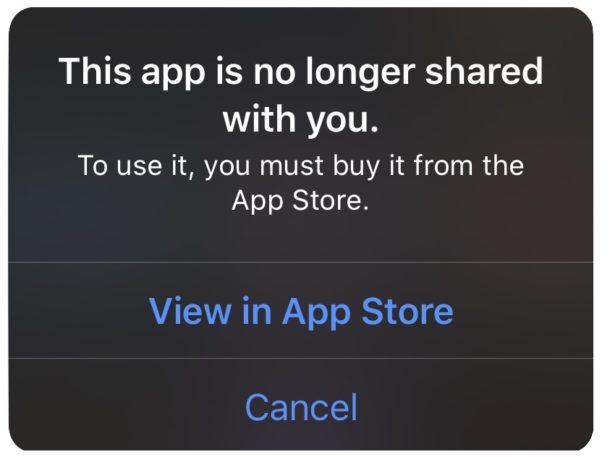
The message “This app is no longer shared with you” usually appears on an iPhone or iPad when you open an app via the Family Sharing feature. This is a fairly common and not too serious issue, and users can completely fix it on their own.
Common causes
This error usually occurs when the account that was sharing the app with you has stopped sharing access. This may happen if the account owner leaves the Family Sharing group, cancels the sharing plan, or removes the app from the shared list.
In addition, when using a publicly shared Apple ID, having too many people logged in at the same time can cause Apple’s system to detect unusual activity. In such cases, the account may be reviewed, restricted, or temporarily have its sharing privileges suspended.
Furthermore, if the device experiences sudden shutdowns, freezes, or frequent sign-in and sign-out actions, Apple’s system may interpret this as abnormal behavior. This can also lead to the error indicating that the app is no longer shared with you.
How to fix the “This app is no longer shared with you” error
There are quite a few different reasons that can lead to this message. However, in the content below, I will share a simple, easy-to-follow method that delivers quick results and has been successfully used by many people.
If you read the instructions but still find them a bit unclear, you can also refer to the detailed tutorial video at the link below to follow each step more accurately.
👉 Watch the video guide to fix the error here: How to fix
Detailed troubleshooting steps
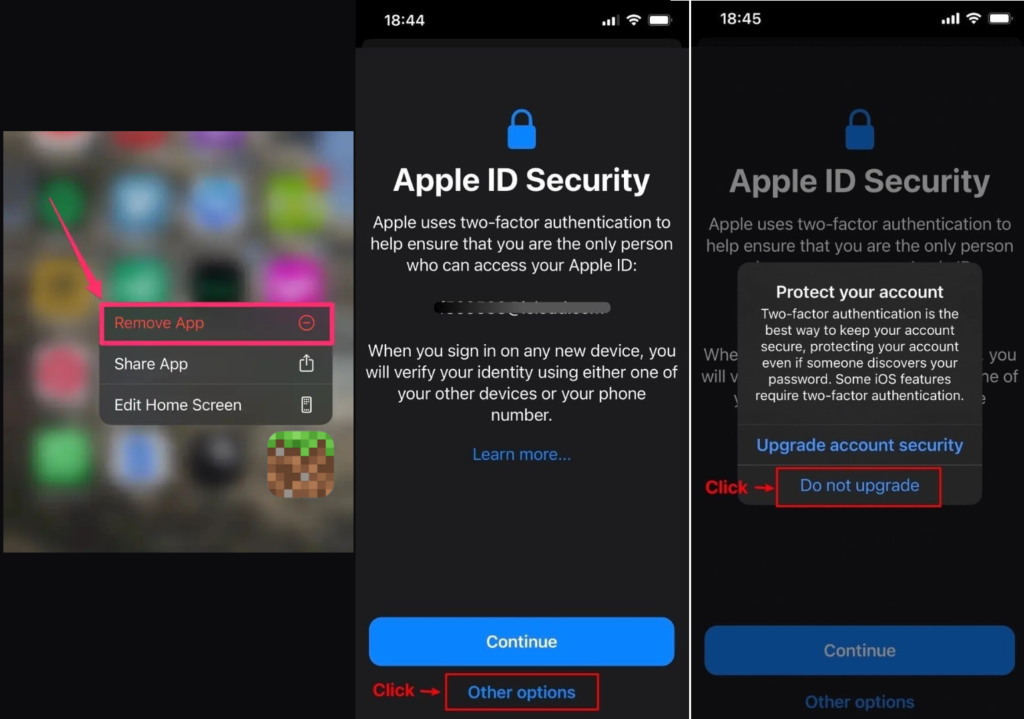
- Step 1: Remove the problematic app
First, delete the app that shows the error message from your iPhone or iPad. Make sure the app is completely removed and no longer exists on the device. - Step 2: Sign in again with the Apple ID you need
Next, sign in to the Apple ID account in here that has permission to download the app you want to reinstall. Make sure this is the correct account and that it is active and working normally. - Step 3: Go to Purchased apps
Open the App Store, then go to Purchased or Apps → My Purchases to view the list of apps you have previously downloaded. - Step 4: Temporarily download any app
Select and install any app from the purchased list. If the list is empty, you can return to the App Store and download any free app. - Step 5: Reinstall the app you need
After the temporary app finishes downloading, go back to the App Store and reinstall the app that you want to use.
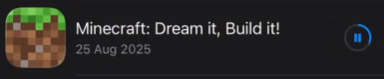
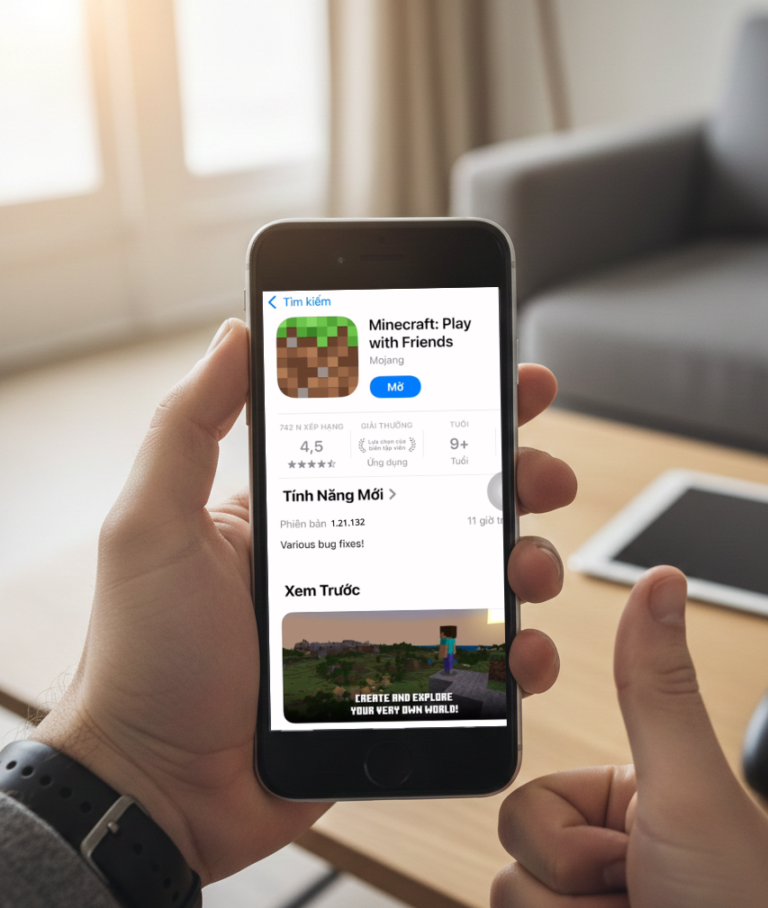
Carry out each step carefully and double-check that you are signed in with the correct Apple ID so the app reinstallation process goes smoothly. download minecraft here
During the process, keep your device stable and avoid sudden shutdowns, freezes, or system hangs to minimize the risk of additional unexpected errors.
Some important notes when using a shared account and encountering the “This app is no longer shared with you” error
When using a publicly shared Apple ID, it is common for too many users to be logged in at the same time. This can cause Apple’s system to detect unusual activity, which may result in restricted sharing permissions, account suspension, or apps becoming unavailable to other users.
This issue can particularly affect the gaming experience, especially for games that save progress directly on the server. Without proper backup measures, you may lose data or previously saved game progress.
How to reduce the risk of losing game data in Minecraft
To keep your data safe, you should regularly save your game progress, especially before deleting an app or reinstalling a game.
- Prioritize saving data to the server
- If the game supports cloud sync or server-based progress saving, make sure to enable this feature so your data is always protected and can be restored if an error occurs.
- Back up data on the device
- If the game does not offer online saving, you can use the in-game backup options or third-party tools that support data backup.
- Prepare in advance before issues occur
- Before performing any actions such as signing out of an account, deleting an app, or changing device settings, ensure that your game progress has been fully saved. This will make it easier to recover your data in case of unexpected problems.
Conclusion to know
Proactively protecting your data by saving game progress to the server, backing up information on your device, and being prepared for unexpected situations will help minimize the risk of accidental data loss.
When the message “This app is no longer shared with you” appears, these measures not only help you fix the issue effectively but also ensure that your app or game usage remains smooth, stable, and uninterrupted.

Bình luận của bạn